
What this guide is for
- This guide is to set your private network IP address for the machine running your torrent client to stay the same.
- It doesn't affect your public IP address (which is assigned by your ISP, or your VPN)
- This process is needed if you wish to become connectable and set up a port forward.
- Network IP addresses usually look like 192.168.X.YZ or 10.X.Y.Z – all devices on the network would typically share the first parts and the last digits would be set as the device's address.
- You usually use something between 1-255
There are two methods for setting your static IP. Reserved IP using DHCP and Static IP via network config. Review them before starting, and see which will suit your needs best.
Reserved IP using DHCP
The preferred method for simple setups is to reserve your IP using the DHCP server in your router. With many modern routers, this is easy and effective.
- This is particularly useful if you have a laptop or your computer is used on several networks, as your settings won't cause a conflict if you connect to other networks.
- It's also less work than setting static IP addresses on lots of devices
- If you reformat or reinstall your OS your IP should still be reserved
Each router has different software, so we cannot go through every one. Instead, below is the generic advice for what you need to be looking for in your router's console.
You'll need to log into your router, usually from your browser. Check on the router itself for a sticker with the login address and admin password for the console.
- Verify the DHCP server on your router is switched on; it is usually a toggle switch
- Browse the connected devices on your router and locate the device where you have your client installed - we suggest you note down the IP and mac address
- Set that device to have its IP assigned by DHCP
- Set that device to always use the same IP address, or have a static/reserved IP address
- Sometimes you will be able to choose the static IP address (the last digits) so choose a number between 1 and 255
- In most routers you will be able to name the device, so you will have the opportunity to come up with something very witty here.
The easiest way to find your mac address and identify the device is almost always using the router console, however if you are having difficulty identifying your device please follow the instructions in troubleshooting (applies to windows only).
Setting a Static IP address on your PC
Choose this method if:
- Your router does not support IP reservation (or, perhaps, if it is being obnoxious and difficult)
- Your network is complex or unstable
- You have tried DHCP reservation and it has not worked properly
Scroll down to your Operating System for the steps.
Windows 11
First, we will identify some of your network parameters and note them down. Then we will go ahead and set the static local IP.
- Identify your current local IP address and gateway:
Click on the start icon, or use the windows start key. Type settings in the search bar at the top and open the Settings app from the results.
Select the hamburger icon in the top left, and choose network & internet. Alternatively you can select your active connection on the right, and click that:
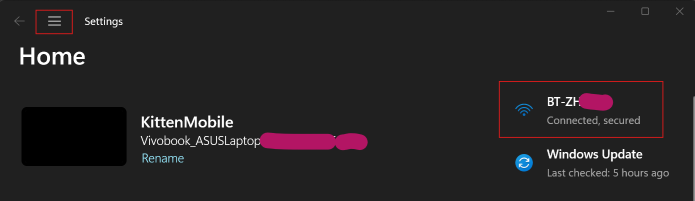
(Eagle eyed readers will note that I have given my laptop a silly name for your edification)
Scroll down and choose Advanced network settings, then click Hardware and Connection Properties.
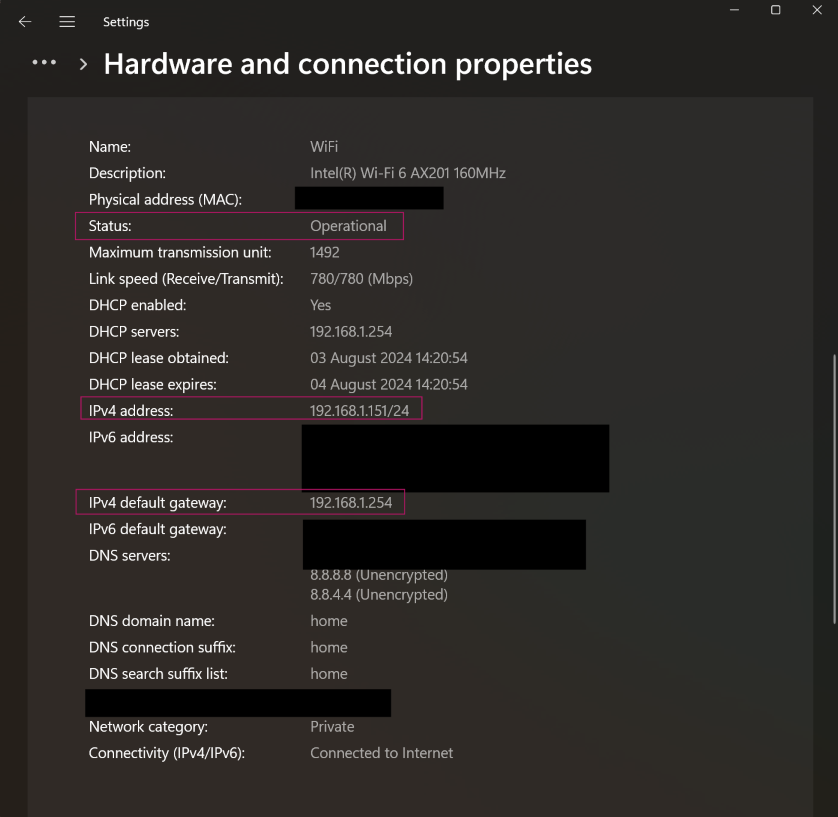
This page may show you several connections, depending on your computer. Scroll down to the section where the connection shows a status: operational. This is the connection you are using.
You will need to note down three things from this screen (all in the section with the operational connection):
- The IPv4 address. This is the local IP address currently assigned to your computer.
- IPv4 default gateway. This is also generally your router's IP address.
- Whether these two addresses start with the same 3 numbers. If so, then your subnet mask is very likely 255.255.255.0 (so note that down too).
- If they do not match, then you will need to use a command prompt to check your subnet mask, you will need to use a command prompt as detailed below.
If you need to find your subnet mask, you can do so with a command prompt.
-
Open the start menu
-
Type cmd and open Command Prompt as suggested by the search
-
Type:
ipconfig /all -
Look for the line Subnet Mask under the connection that you are using (wifi or ethernet)
-
You can also obtain the IPv4 address and default gateway using command prompt if you prefer.
-
Change from dynamic to static local IP
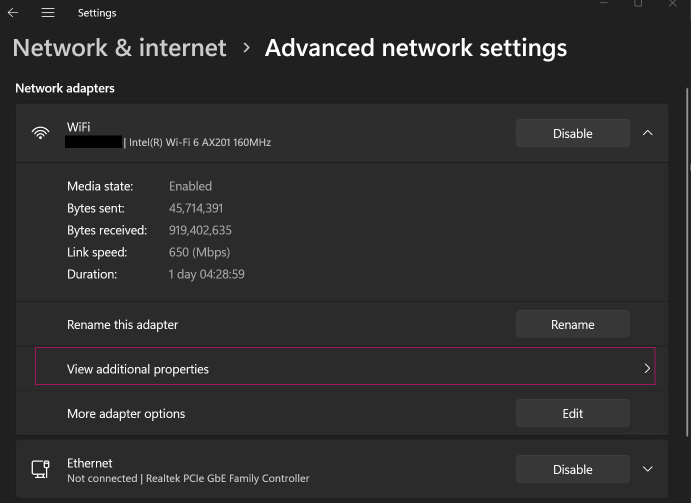
Click the edit button next to IP assignment at the top:
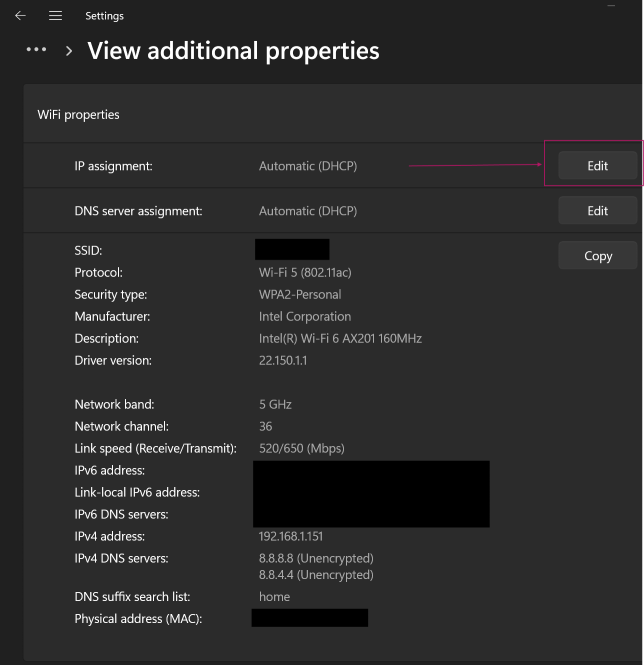
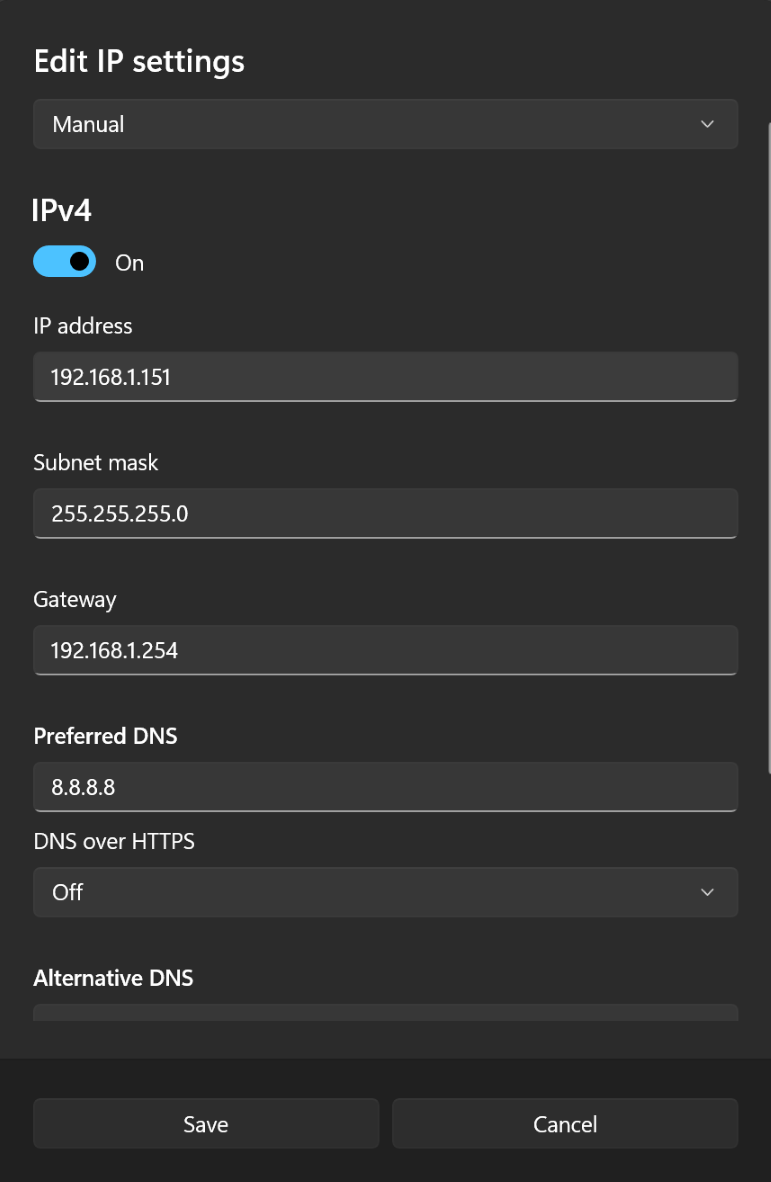
Choose Manual from the dropdown list, then change the IPv4 radio button to 'on' and the full panel of options will appear.
Enter the following:
- IP Address - your IP address you noted down earlier. Unless you need to change this, it is advised you keep it the same.
- Subnet Mask - 255.255.255.0 unless noted otherwise
- Gateway - your Default Gateway noted down earlier
- Primary DNS server and Secondary DNS server.
- Here we recommend using public DNS servers instead of those provided by your ISP. Use any two of the following. They are owned by Cloudflare and Google.
- 1.1.1.1, 1.0.0.1, 8.8.8.8, 8.8.4.4
- You don't need to turn on DNS over HTTPS here unless that's something you are looking to do for security reasons (outside the scope of this guide).
Save and exit.
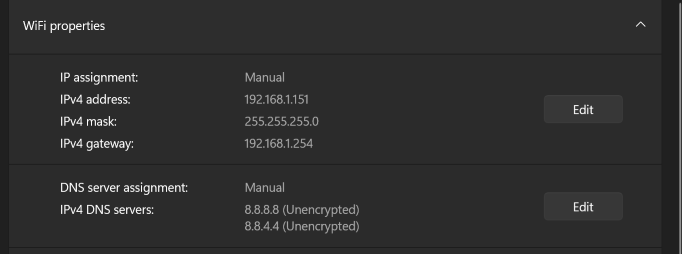
Your saved settings now appear in the network settings panel, and your network connection should refresh:
Windows 10
First, we will identify some of your network parameters and note them down. Then we will go ahead and set the static local IP.
-
Identify your current local IP address and gateway:
-
Open the start menu
-
Type
cmdand open Command Prompt as suggested by the search -
Type:
ipconfig /all
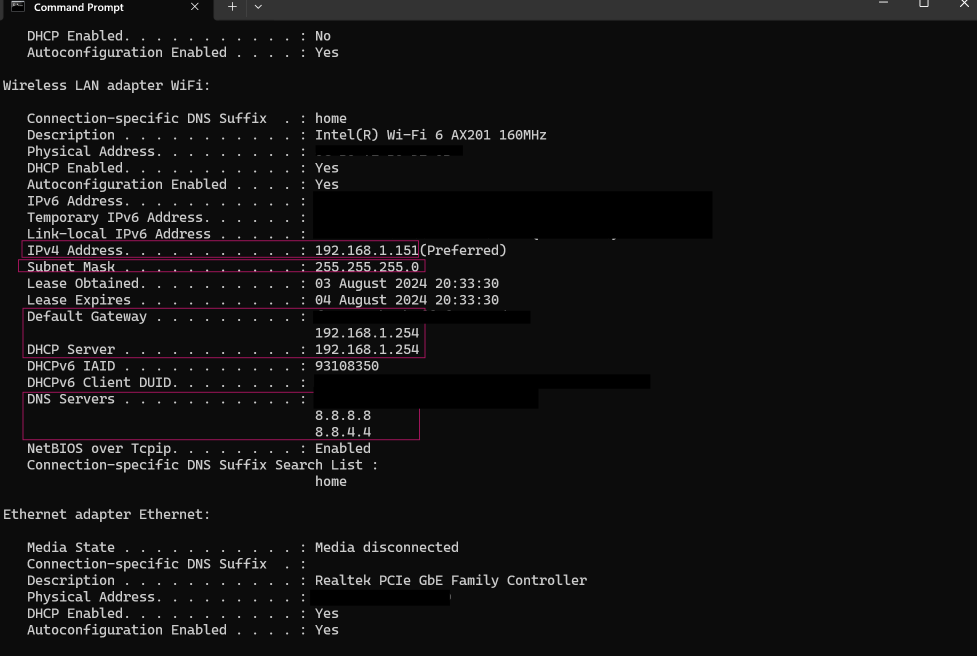
The screen will now display information for all of your device's network connections. Note that not all of them will be active or in use, so scroll to the connection you are using (such as wifi, or ethernet).
Note down:
- IPv4 address
- Subnet Mask
- Default Gateway
This guide only covers IPv4, and IPv6 details have been obscured from the example below. Also, your image might look slightly different but should still contain the three items above.
- Change from dynamic to static local IP
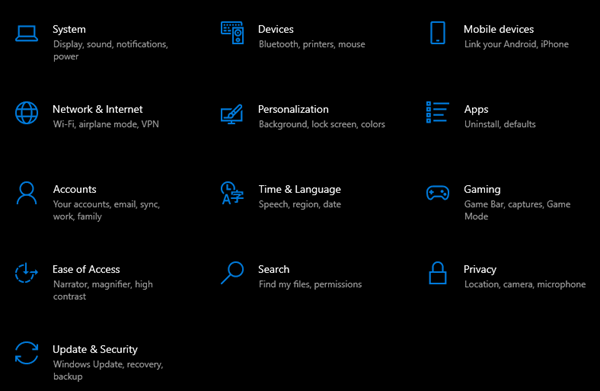
Click the start menu again, and choose Settings ⚙️
Then click Network and Internet.
Now open the Network and Sharing Center:
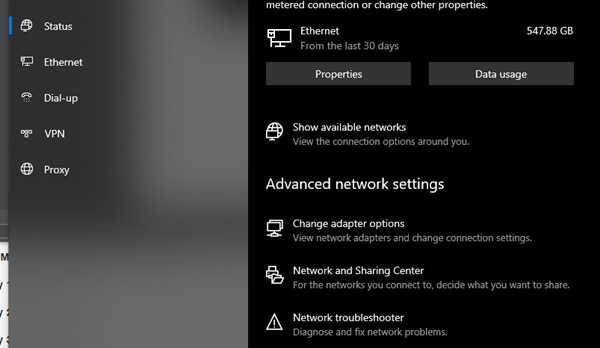
Choose Change adapter settings from the menu on the left.
And select the network adapter you are currently using:
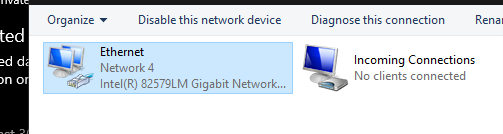
Right click the adapter, and choose Properties. You will see a pop-up window. Choose Properties again.
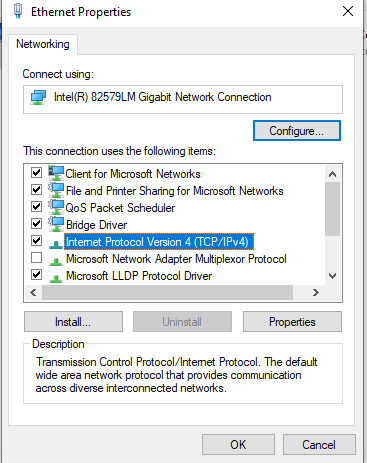
Now we will enter the information you noted down earlier.
Choose Use the following IP address
- IP Address - your IP address you noted down earlier. Unless you need to change this, it is advised you keep it the same.
- Subnet Mask
- Default Gateway
Then we would recommend you also choose Use the following DNS server addresses
Instead of those provided by your ISP; use any two of the following. They are owned by Cloudflare and Google.
1.1.1.1, 1.0.0.1, 8.8.8.8, 8.8.4.4
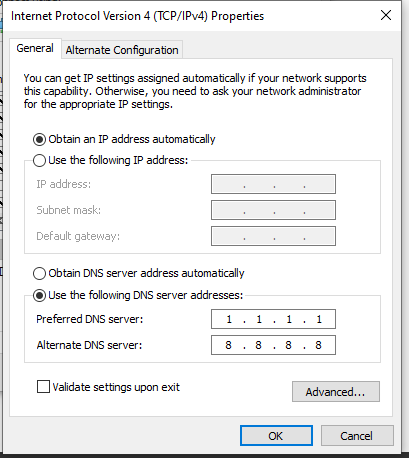
Choose OK and close the window. Your connection should refresh.
Run another ipconfig /all via the command prompt to verify the changes are in effect.
Mac
-
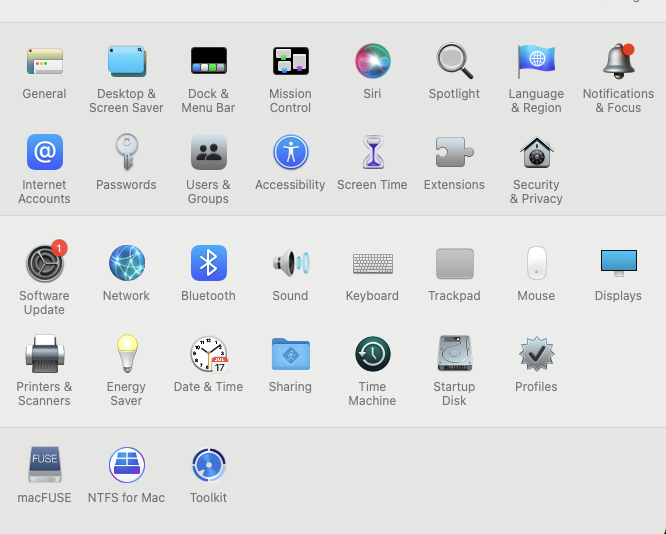
Click the apple icon in the top left corner of your screen and go to System Preferences, click on Network
-
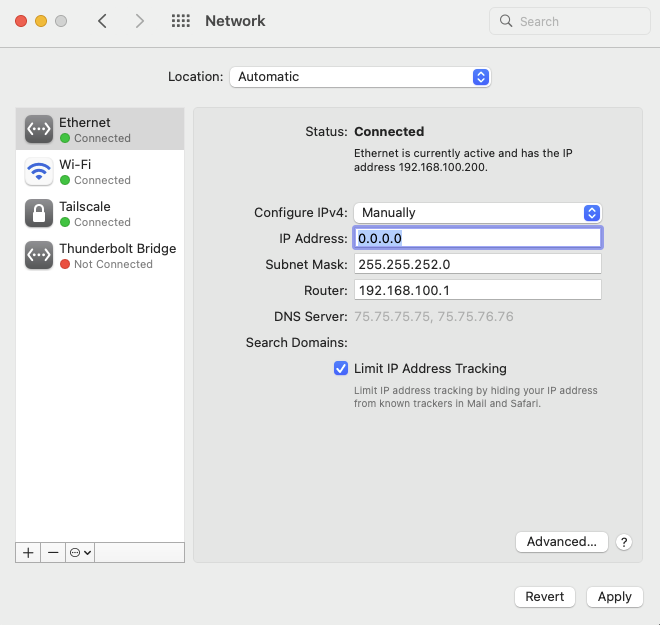
On the Network screen, find your internet connection (Ethernet or Wifi).
Note down the current IP address in use. -
Change Configure IPv4 dropdown from DHCP to Manually. Enter your static IP address. We recommend you use the same one you noted above.
Your subnet mask and router will already be filled out.
-
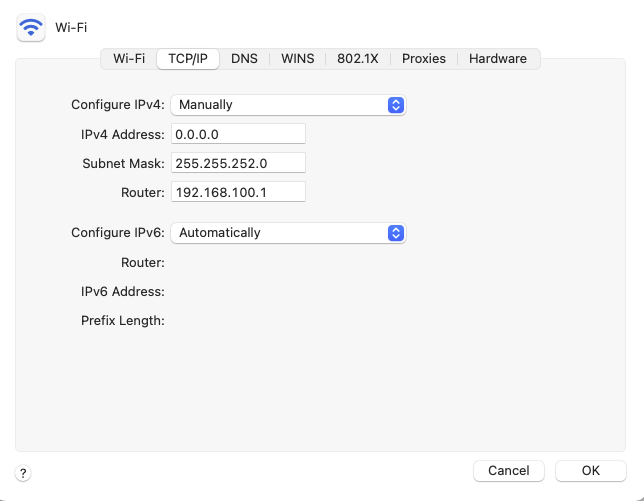
If you want a little more control, click the Advanced button (Advanced also available on Wifi). Go to the TCP/IP tab to change your IP address to static.
-
This allows you to now go to the DNS tab and change your DNS setting:
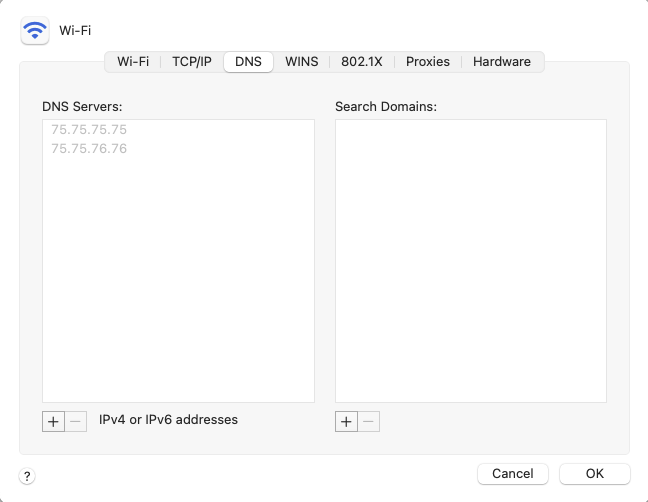
We would recommend you choose a public DNS rather than one provided by your ISP; use any two of the following.
They are owned by Cloudflare and Google.
1.1.1.1, 1.0.0.1, 8.8.8.8, 8.8.4.4
Click OK and you are done.
Other Operating Systems
We have included the most common operating systems used on MyAnonamouse above. If you use something else, you can find instructions for other systems on Portforward.com. Remember that we strongly recommend not purchasing their software or clicking on any ads on their site.
Linux steps have not been included due to the breadth of system variations, and since most linux users should be capable of setting a static IP unaided.
Troubleshooting
You may need to release and renew your DHCP license to get the changes you have made to take effect.
- Open the start menu
- Type cmd and open Command Prompt as suggested by the search
- Type:
ipconfig /release - Type:
ipconfig /renew
You may need to identify your device using its MAC address. This is a unique code that identifies each networking device.
To confirm your MAC address:
- Log onto the device and open the start menu
- Type cmd and open Command Prompt as suggested by the search
- Type:
ipconfig /all - Look for the line Physical Address under the connection that you are using (wifi or ethernet)
- Return to your router and find the matching device
Credits
This guide is adapted from MyAnonamouse (MaM) and shared here in good faith. Many thanks to them for creating such a helpful resource.