
What is this guide for?
- Setting up a port forward should mean that your connection status changes from Unconnectable to Connectable.
- This is not essential, but it is an advantage. You can – however – download, seed and earn points whilst unconnectable.
- Being Connectable will allow you to seed more effectively and to more people.
Before you start
- You will need to have an active torrent in your client.
- You will need to follow either the VPN or No VPN instructions below.
No VPN
Use this section if you use your home internet connection without a VPN for downloading and seeding torrents.
Before we begin, it is useful to first check for Carrier Grade NAT (CGNAT). This is becoming increasingly common and is used on almost all connections in some countries (esp India, Bangladesh). If you have CGNAT you won't be able to get connectable.
If you have no CGNAT, for a standard home connection, we will be doing the following:
- Setting up a static IP address within your home network
- Choosing a port number for your client
- Logging into your home router and setting up a port forward rule
- Set your Static IP
The computer you use to run your client (eg qBitorrent) will need to have a static IP. This is not the same as a static public IP address, it's just for within your home network.
Head over to the static IP guide to get that set up.
When that's done, return here and move on to step 2.
- Set your Port
Choose your port number. It should be a single number (not a range). We recommend a number from40,000 - 65,000.
Set this port in your client. Set the client to use TCP and UDP if possible.
For qBittorrent, you will find this under Tools > Options > Connections
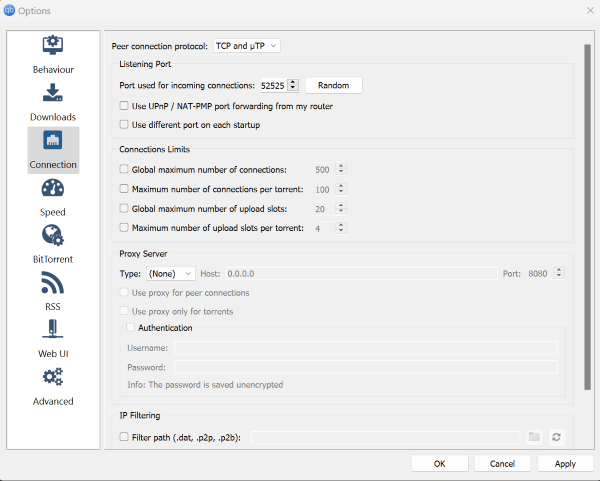
For further help with this step see the guides specific to your client.
- Forward!
We need to forward traffic to your client on the static IP that you defined. This is done in your router's admin panel.
Every home router has a different admin panel, so we cannot guide you through the exact steps here.
First you should identify your router – there should be a sticker somewhere on its person. This will often include the admin login, if you haven't reset it.
Look up the steps for your specific router model:
- Portforward.com has walkthroughs for many router models. IMPORTANT: Do not pay for the portforward.com software. It is not necessary or helpful.
- If your router is not listed there, a google search for the model + port forward may be helpful
- Your router may include a help file or guide, and port forwarding may be included under connections, port, NAT or firewall.
Here is some generic setup guidance which will help with many router models:
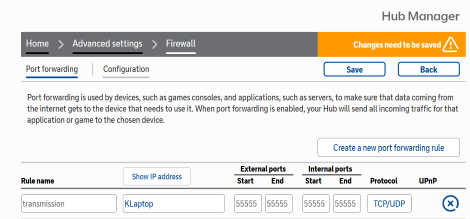
- Name the forward. You may wish to name it for your client, eg qBittorrent (rather than, say, Gavin)
- Enter the Network IP to forward to (this is your static IP for your PC with your client)
- Enter the your port number. It may ask you for internal and external ports, and start and end ports. Use the same number for all of these.
- Protocol - select TCP and UDP (both)
- Direction - choose both
Make sure it is enabled, applied and saved.
Here's a port forward example from my own router (a BT Smart Hub, with dummy info). They do not all look alike, but this may give you some idea.
You can find many more screenshots by browsing PortForward's library of router models and looking for one similar to your own.
VPN
Use this section if you use a VPN for downloading and seeding torrents.
Not all VPNs allow port forwarding. You should first check on your provider's website and see if they offer port forwarding, if you aren't sure. Note that if you use a proxy, you will not be able to become connectable.
Follow your provider's instructions on their site to set up the port forward. Usually this will be:
- Request a forwarded port from the provider (this is fairly simple if you are using their software)
- Set your client to use that forwarded port. See the client guides if you would like more information on this.
- Uncheck 'use uPnP / NAT PMP port forwarding from my router' in your client.
Note: When you use a VPN, there is no need to set up a port forwarding rule on your router. The VPN handles the port forwarding, and everything you do on your local router is bypassed.
Links for popular VPNs:
These providers include instructions on how to do port forwarding on their site. The port number is allocated each time you connect, you need to make sure that you update your client each time.
- ProtonVPN client instructions and manual instructions.
- Private Internet Access port forwarding instructions.
These providers allocate you a port, and therefore you do not need to check the port number each time:
- Torguard client instructions.
- AirVPN / Airguard client instructions.
For other VPNs, check their website for similar resources.
Popular VPNs which do not allow port forwarding include NordVPN and Mullvad. You will not be able to become connectable whilst using these services.
Testing for Connectability
To test your connectability status, go to Connection Checker Page and click Test Connectivity. Your torrent client must be running.
If your test is successful you will see this response: the client on [your IP address]:[port] appears to be connectable
NB: The green/yellow dot indicator will update in due course with your result, but it is not real time. If you have just made changes, you should run the full test to check.
If your test was unsuccessful you will see something like:
"the client on your.IP: PORT appears to be not connectable due to: Connection timed out" or a similar error message. You are not connectable. Double check that you followed the steps correctly (including setting a static IP!). Do not rush.
Troubleshooting tips:
- Give it a few minutes after making changes. Not everything is real-time, so before panicking, have some tea.
- Turn off any firewalls (many anti-virus programs include firewalls unbeknownst to their users), test again on canyouseeme.org and then turn the firewall back on. If turning off the firewall allowed you to be connectable, you need to add an exception. Use the keyword in exception in your firewall's help files to locate how to add one.
- Try a different port. Another service on the router, on your network, or on your computer may be using the one you tried. Additionally, some ISPs block certain ports. Again, we recommend a number from 40,000 - 65,000.
- Check that your port forward is saved properly and completely in your router. Try using another browser if you have problems.
- If your router is connected to another router (usually in the form of a modem/router that your ISP gave you) both must have port forwarding rules: Portforward Double Router, or the second router must act as a switch, with DHCP turned off: Portforward DHCP. The first way is easier but may not always work.
- Some users will not be able to be connectable due to ISP, apartment (housing) or other firewalls that they have no control over.
- Check (again!) for Carrier Grade NAT.
IPv6 Connectability
If IPv6 is enabled for your connection, you should not need to forward the ports to any specific device. However, you may need to open the ports in your router's firewall. Go to the IPv6 section of your router, and open the port you have set for your client and this should be sufficient to become connectable.
Additional Resources
List of default router usernames and passwords
Some Firewall setups on Portforward.com
Credits
This guide is adapted from MyAnonamouse (MaM) and shared here in good faith. Many thanks to them for creating such a helpful resource.